ProMeta CLI
Command-line interface for ProMeta source datasets, analyses, and SVG plot rendering — part of the ProMeta Suite, the same engine behind the ProMeta browser app and the Forest Plot Editor, for scripting and batch processing.
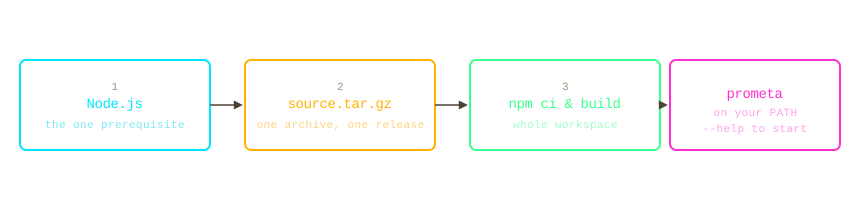
Distributed as source only: no npm package, no prebuilt binary to download. Getting it running is three steps — install the prerequisite, get the source, build it — covered below.
What's a CLI, and why bother?
A CLI (command-line interface) is a program you run by typing commands into a terminal instead of clicking buttons — no windows, no mouse, just text in and text out. That sounds like a step backwards until you need to run the same analysis on fifty datasets overnight, wire ProMeta into a larger pipeline, or reproduce an analysis exactly, byte for byte, a year later. A terminal doesn't mind repetition, scripting, or being left running unattended — a browser tab does.
You don't need to be a programmer to use one, but you do need to be comfortable with: opening a
terminal (your shell of choice on Linux, Terminal on macOS, Command Prompt or PowerShell on
Windows), running a command and reading its output, and navigating folders with cd instead of
double-clicking them. That's genuinely most of it.
It's also the interface AI coding assistants (Claude, Copilot, and similar tools) are best at driving: text in, text out, scriptable, and composable into a larger pipeline — the kind of thing they can wire up in a script far more reliably than they could click through a browser app. If you already work with one of these assistants, you can just ask it to write and run the loop over your datasets for you, instead of doing the three steps below by hand. See AI and Statistical Analysis for what that's good for, and where it isn't.
If you're reading this because someone linked you a CLI tool's install page, you can probably skip straight past this box — you already know what a terminal is, and you're here for the commands, not the pep talk.
1. Prerequisite: Node.js
The only thing you need installed is Node.js (which includes npm) — any current LTS release works. Download the installer for your system from nodejs.org and run it; nothing else is required.
2. Get the source
The ProMeta Suite is one monorepo, one release, one source tree — ProMeta, the Forest Plot
Editor, and this CLI are built from the exact same source.tar.gz, published once per release.
There's no separate CLI-only archive to look for. You can get it either by clicking through the
website, or from the command line — same file, same content, pick whichever is more convenient.
Through the website: open all releases, find the version you want
(under either app — the archive is identical), and click its "source" link to download
source.tar.gz. Then extract it like any other archive (double-click on macOS/Windows, or
tar -xzf source.tar.gz from a terminal).
From the command line:
curl -fsSL https://apps.actilab.eu/v1/releases/source/latest/source.tar.gz | tar -xz
Either way you end up with a prometa-<version>/ folder — that's the input to the build step
below, the same for every operating system.
Reproducing a specific analysis or a paper's results
latest always points to the newest release, which changes over time — not what you want if
you're replicating an analysis you (or a paper) ran with a particular ProMeta version. Every
release is published immutably at its own URL, so pin the exact version instead:
- on all releases, every past version has its own "source" link, not just the latest one;
- or, from the command line, replace
latestwith the version number:https://apps.actilab.eu/v1/releases/source/releases/<version>/source.tar.gz
The version a given analysis used is normally recorded alongside its output (check the analysis's export, or the paper's methods section) — build that exact version and results are reproducible.
3. Build
Build instructions differ slightly by operating system, starting from the prometa-<version>/
folder obtained above.
Linux / macOS
cd prometa-*
npm ci
npm run build
The build compiles the whole workspace (prometa-cli depends on the other packages' build
output, so a partial build isn't enough). The bundled CLI ends up at
packages/prometa-cli/dist/cli/main.js. Make it executable and put it on your PATH:
chmod +x packages/prometa-cli/dist/cli/main.js
mv packages/prometa-cli/dist/cli/main.js ~/.local/bin/prometa
prometa --help
Windows
cd prometa-*
npm ci
npm run build
The bundled CLI ends up at packages\prometa-cli\dist\cli\main.js. Windows doesn't run .js
files directly, so wrap it in a small launcher. Create prometa.cmd next to main.js (or
anywhere on your PATH):
@echo off
node "C:\path\to\packages\prometa-cli\dist\cli\main.js" %*
Add that folder to your user PATH (Settings → Edit environment variables), then run
prometa --help from any prompt.
Documentation
See Commands and usage — generated directly from the CLI's own
docs, so it never drifts from the source tree. Once it's built, prometa manual prints the same
document straight to your terminal, and prometa --help / prometa <command> --help cover the
exact options for one command.